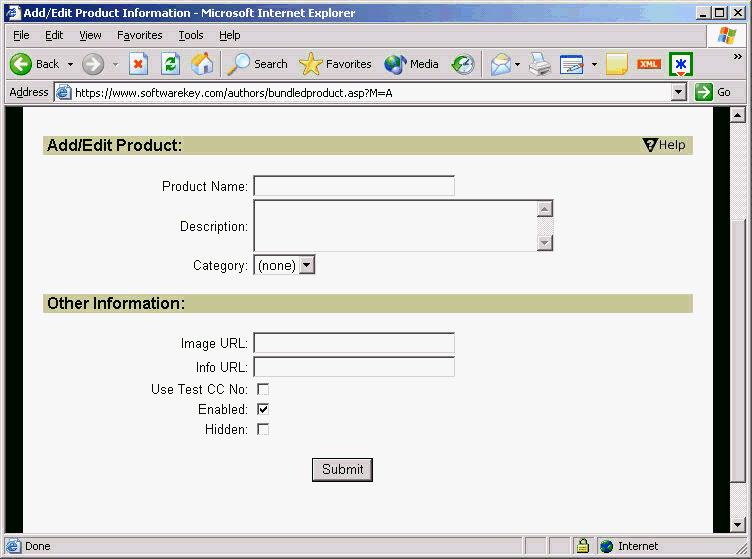
Another new promotional feature of the cart allows items to be sold in a bundle. A bundle is basically a group of items that acts as a single item on the cart, and can incorporate discounts due to buying all products in a bundle as a package. When an order is completed, all products in a bundle are broken out and get individual licenses. To create bundled items, follow the following steps:
On the author home page on the Current Options tab, there is a new link called Add Bundle. Clicking this link will take you to the Add Bundled Product page. On this page the basic information for the bundle and click Submit.
The next screen allows you to set up which products will be included in the bundle. Note that you should define all items at this point, as there is no functionality to add new items to a bundle once it has been created. Select the products from the drop down and click Add Product to add a product to the bundle. Once two products are defined, a Done button will appear next to the Add Product button. Click this when all products have been added to the bundle.
At this point you will be taken to the product information page for the new bundle. The next step is to define options for the bundle. Click the Add link on the Current Options tab at the bottom. You will be taken to a stripped down version of the product options page. Enter all of the necessary information here. At the bottom of the page, there will be a drop down containing all options for each product defined in the bundle. Select the desired option for each product. You may also optionally enter a bundle discount for each item in the bundle. This is the discount that will be applied to the product for purchasing the bundle.
To edit existing bundles, simply edit them as you would a regular product or product option. Only the necessary fields for editing will displayed.
Bundles will display on the cart with a breakdown of the included options, as well as a message stating the bundle discount if there is one present.