Upload Graphics, Stylesheets, and Other supporting files
SOLO Server uses SSL (secure sockets layer) encryption to protect customer data. When customizing the customer facing areas of SOLO Server, referencing images on an external server while using an HTTPS (SSL secure) connection will cause a message similar to "The page you are about to view contains both secure and unsecured items. Do you wish to view the unsecured items?" to be displayed. This will inevitably confuse a user. Therefore, it is necessary to upload all graphics, stylesheets and other supporting files to your web graphics directory on the SOLO server so that all page items can be transferred through the SSL encryption channel. Note that the maximum upload size is set at 30MB. This applies to the total file size when using the bulk upload utility, and the individual file size when using the standard mechanism.
-
From the Authors menu, select Storefront & Files / Files / Web Graphics.
-
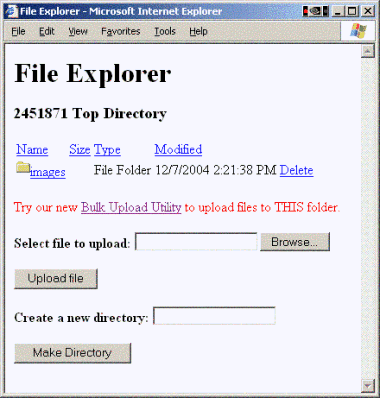
Change to the directory called Images by clicking on the directory name. Create this directory if necessary by typing in Images and clicking Create Directory.
-
Add all page graphics one at a time using the Select File to Upload field. This will store the images on our server in a directory only accessible by you.
-
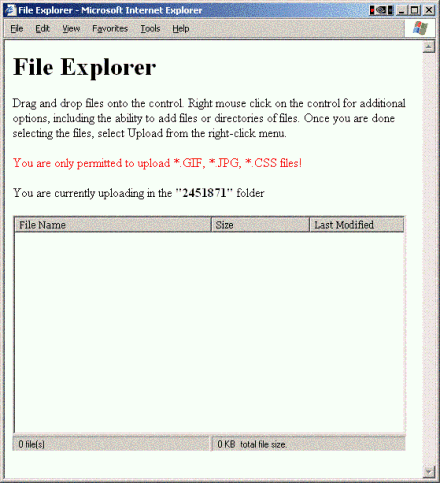
Alternatively, use the Bulk Upload Utility to easily upload multiple files - *.gif, *.jpg, *.css all at once. You must allow Internet Explorer to install the ActiveX control written by NetDetail in order for the utility to work. Make sure you have selected the correct directory before clicking on the Bulk Upload Utility.